How to See What Grammarly Changed in Your Document (Before vs After)
 Sana Bano
·October 5, 2026
·12 min read
Sana Bano
·October 5, 2026
·12 min read
Learn how to see what grammarly changed, review suggestions, and compare versions or recover earlier wording.
Key Takeaways
You can see edits most clearly when you review suggestions before accepting them. For changes already made, use a saved copy or your editor’s version history when available.
- Suggestions are separate from your document until you accept them.
- Review wording and meaning before applying a rewrite.
- Undo can help with a recent unwanted change, but it may not recover older text.
- Saved copies and version history give you a better before-and-after view.
- Compare the full passage when an edit changes more than a few words.
Understand how Grammarly shows edits
If you’re figuring out how to see what Grammarly changed, first separate suggestions from edits that have already been applied. A suggestion can show you proposed wording while leaving your original text in place. Once you accept it, the document reflects the revised wording, so the original may no longer be visible in the suggestion itself.
Suggestions remain separate from your text until you accept them
While a suggestion is waiting for a decision, you can review it without treating the proposed wording as part of your draft. The marked text points you to a possible change; the suggestion gives you a chance to consider it. This distinction matters when you’re checking a sentence’s original phrasing against a recommendation.
Accepted suggestions replace the original wording
After you accept a suggestion, the revised text appears in the document. If you want to preserve the original, copy it somewhere first or save a separate draft. That small precaution gives you a reliable point of comparison even if you accept several suggestions in a row.
Rewrites can affect more text than a single correction
A rewrite may change a phrase, a sentence, or a broader passage, depending on the suggestion. Don’t assume that a short highlighted area means only one word changed. Read the full sentence—and, when needed, the surrounding paragraph—to catch shifts in emphasis, tone, or meaning.
Grammarly may not provide a complete before-and-after report
A suggestion list is useful for reviewing proposed changes, but it may not serve as a permanent record of every edit you have accepted. The available options can depend on where you’re working and what is saved. For more detail on the editor and its document tools, see this Grammarly Editor guide.
Review Grammarly suggestions before accepting them
The easiest time to compare original and proposed wording is before you accept a suggestion. Open the document where you’re reviewing the text, then look for marked passages or suggestion controls. The interface may vary by editor, so focus on the change itself rather than expecting one universal sequence of buttons.
Open the document and locate Grammarly’s marked text
Start with the document in which Grammarly is active and scan for marked text. The marks help you find places where a suggestion is available. If you don’t see them, check whether the document or editor has finished loading and whether the writing assistance is enabled there.
Select a suggestion to compare the original and proposed wording
When you open a suggestion, read both versions carefully instead of judging the replacement in isolation. Ask whether the revision preserves your point, not merely whether it sounds smoother. A free grammar checker can help you think through grammar and clarity, but your intended meaning still has to guide the decision.
Accept changes individually when you want to review each edit
Working through suggestions one at a time gives you a chance to decide what belongs in the draft. It also makes it easier to notice when a polished sentence has subtly moved away from what you meant. If you have only a handful of changes, this deliberate pace is usually less confusing than accepting everything at once.
Dismiss suggestions that don’t preserve your intended meaning
A suggestion is optional. If the revision changes your claim, removes a necessary qualification, or makes the tone feel wrong, leave your original wording in place. That judgment matters especially for precise material such as research findings, names, dates, and technical terms.
Check changes you’ve already accepted in Grammarly
Once a suggestion has been accepted, the document may no longer show the earlier wording beside it. Start with the quickest recovery option, then look for a saved version if you need to go further back. What you can recover depends on the editor and whether an earlier copy or version is available.
Use Undo soon after accepting an unwanted change
If you notice the problem right away, use Undo before making more edits. Undo generally reverses the most recent action, so it may help restore wording you just replaced. If you have continued editing, pause before undoing repeatedly; later actions may also be reversed.
Check whether document history or version recovery is available
Some writing environments provide document history or recovery options, while others may not preserve a version you can restore. In Grammarly Editor, the available document-version options are described in its recovery guidance. When you investigate, it helps to check a few distinct places rather than relying on the current suggestion list:
- Look for a document history or version recovery option.
- Check whether an earlier version can be opened or downloaded.
- Confirm that you have the correct document and date.
- Save a recovered copy before making further edits.
These checks help you distinguish a missing suggestion from a recoverable earlier draft. The document recovery guidance explains available recovery and version-history options for the Grammarly Editor.
Reopen a saved copy if you need to recover earlier wording
If you made a duplicate or downloaded a copy before editing, reopen it and retrieve the passage you need. Compare it with the current draft before replacing anything; the newer version may contain other edits you want to keep. A careful copy-and-paste is often safer than restoring an entire document just to recover one sentence.
Avoid assuming the suggestion list shows edits you already accepted
A suggestion list is not necessarily a complete log of changes already applied. If a suggestion has disappeared, that alone does not tell you exactly what was changed or when. Use Undo, document history, or your own saved copy to investigate instead of treating the remaining suggestions as a full edit record.
Compare versions in Google Docs or Microsoft Word
If Grammarly’s current suggestions don’t show the original wording you need, compare document versions in the editor where you saved your work. Google Docs and Microsoft Word offer ways to work with earlier states or review differences, though the exact steps depend on your document setup. For a dependable result, preserve both versions before comparing them.
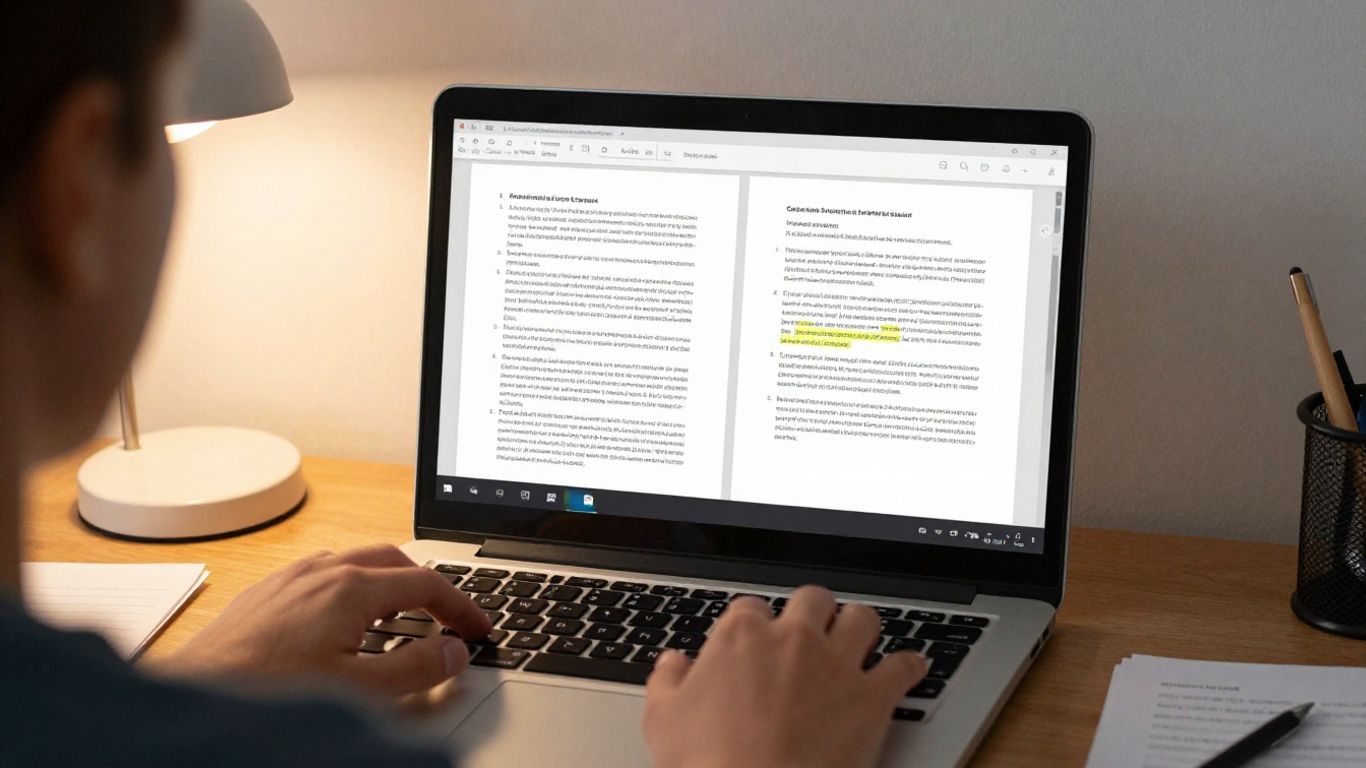
Use Google Docs version history to inspect earlier document states
Google Docs version history can help you inspect earlier states of a document. Open the history controls in your document and locate a version from before the wording changed. If you need to keep both the old and current text, make a copy rather than replacing the latest draft with an earlier state.
Turn on Track Changes in Word before reviewing Grammarly edits
In Word, turn on Track Changes before you begin reviewing if you want Word to record edits made during that review. This can make changes easier to inspect later. Don’t assume it will reconstruct edits that were already accepted before tracking began; for those, look for a saved earlier copy or another history option.
Use Word’s Compare feature when you have two saved copies
When both the original and revised documents are available, Word’s Compare feature can help identify differences between them. A dedicated comparison can be useful when the changes are too numerous to check by eye. These approaches serve slightly different needs, so this table can help you choose where to start.
| What you have | Useful starting point | What to keep in mind |
|---|---|---|
| One current document in Google Docs | Version history | Find a suitable earlier state before restoring anything |
| One Word document and new edits ahead | Track Changes | Enable tracking before you review the changes |
| Two saved Word documents | Compare | Keep the original and revised copies distinct |
| A passage with several rewritten sentences | Side-by-side reading | Review the whole passage for changes in meaning |
Choose the method that matches the versions you actually have. A word-level text diff can also make additions and deletions easier to spot when you have two text versions to compare.
Check how Grammarly works with your editor before relying on tracked edits
The behavior of suggestions can vary depending on where you use Grammarly and how your editor handles changes. If you need a formal record, test the workflow on a copy first: make a small edit, accept it, and see whether it appears in the editor’s tracking or history. That quick check is more dependable than assuming the tools will record each other’s actions.
Set up a reliable before-and-after comparison
A comparison is only useful when you can identify which copy came first and which one contains the edits. Make that distinction before you begin, especially if you’re revising an important document or expect a substantial rewrite. A little file organization now can save a lot of reconstruction later.
Save a copy of the original before editing
Before applying suggestions, save or duplicate the original document. Keep that version unchanged, even if you think you’ll only make a few small edits. If you need a closer look at differences later, you can compare two actual documents rather than trying to remember what the original said.
Apply Grammarly suggestions to a duplicate
Use the duplicate as your working draft and leave the original alone. This gives you room to accept, reject, or revise suggestions without losing the starting text. If a rewrite feels off, you can refer back to the original passage without interrupting your editing flow.
Keep the two versions clearly named and easy to find
Choose names that make the relationship between versions obvious, such as “Original” and “Revised,” and include a date when that helps. Store the copies together so you don’t accidentally compare the wrong drafts. Clear naming is simple, but it prevents an avoidable source of confusion.
Compare full passages when a rewrite changes several sentences
A word-by-word scan may miss changes to the argument or flow across several sentences. Read the original and revised passages in full, paying attention to what was added, removed, or repositioned. If you’re using the GPTOne word-level diff, treat it as a way to spot text differences, then read the surrounding passage yourself to judge their effect.
Choose the right review method for your situation
There isn’t one best way to inspect every edit. A small number of suggestions is easiest to review directly, while changes made over time may call for document history. If you have two saved copies, a direct comparison is often the clearest option.
Review suggestions one at a time for a small number of edits
When only a few suggestions are pending, open each one and decide whether it preserves your meaning. This method keeps the comparison close to the sentence being edited. It also makes it easier to dismiss an awkward rewrite without having to repair a larger batch of changes afterward.
Use version history to investigate changes made over time
Version history is a sensible place to start when you know a document changed but aren’t sure when or how. Look for a version from before the change, then compare it with the current text. History can help you find a useful snapshot, but you should still verify the exact wording you intend to restore.
Compare saved copies when you need a clear record of wording changes
If you need to document precisely what changed, keep the original and revised copies and compare them directly. GPTOne also offers an online text comparison for seeing word- and sentence-level changes between two texts. A comparison reveals differences in wording; it doesn’t decide whether those differences improve the draft.
Recheck meaning, tone, and factual details after accepting rewrites
Read the final passage as a reader would. Check that the claim is still accurate, that the tone suits its audience, and that qualifications or factual details haven’t shifted. If you’re also reviewing whether a sample shows signals of AI authorship, you can check a text sample with the GPTOne AI detector; its result is a signal to consider, not proof of who wrote the text.
Conclusion
To see what changed, review suggestions before accepting them whenever you can; after the fact, rely on Undo, available version history, or a saved original. For substantial rewrites, compare whole passages and make the final call based on meaning, tone, and accuracy—not just cleaner wording.
Try a free AI check
If you want to assess a piece of writing for AI-authorship signals, try the GPTOne AI detector and treat its confidence information as one part of your review.
Frequently Asked Questions
Can I see what Grammarly changed after accepting a suggestion?
The suggestion may no longer show the original wording after you accept it. Try Undo if the change was recent, or look for an earlier document version or saved copy.
Does Grammarly keep a complete list of accepted edits?
Don’t assume the suggestion list is a complete record of accepted changes. The history or recovery options available depend on the editor and the document versions that remain available.
How do I compare my original text with a revised version?
Save both versions, then compare them side by side or use a document comparison feature. Read the full passage when a rewrite affects multiple sentences.
Can I recover wording I replaced by mistake?
You may be able to restore it with Undo, document history, or a saved copy. The best option depends on how long ago the change happened and what versions are available.
Should I accept all suggestions at once?
Reviewing suggestions individually gives you more control over meaning and tone. If you accept several changes together, check the final passage carefully afterward.
Does Track Changes show edits that were already accepted?
Track Changes is most useful when it is enabled before you make or review edits. It may not recreate changes that were accepted before tracking began.
What should I check after a large rewrite?
Compare the revised passage with the original, then verify the claim, tone, facts, and any important qualifications. A smoother sentence is not necessarily a more accurate one.