Google Docs Version History vs a Text Compare: What Each Actually Shows
 Sana Bano
·October 13, 2026
·14 min read
Sana Bano
·October 13, 2026
·14 min read

A practical guide to google docs version history vs text compare, including timelines, edits, and reliable review.
Key Takeaways
Version history and text comparison answer different questions: one gives you a record of document states, while the other makes differences between two versions easier to inspect.
- Use version history to review earlier document states, timestamps, and collaborator activity.
- Use a text comparison to spot changed wording between two selected versions.
- Neither method, by itself, proves who authored a passage or why it changed.
- Compare clearly labeled copies and check comments, suggestions, and formatting separately.
- Keep original files when accuracy, approval, or evidence matters.
What Google Docs version history shows
Google Docs version history helps you look backward through a document’s changes rather than just compare two files. It can help you find an earlier state and understand when edits occurred. That timeline is useful, but it is not the same as a precise, independent comparison of any two drafts you choose.
Earlier document states and timestamps
When you open version history, you can review earlier states of the document and the times associated with them. This is helpful when you need to recover wording or understand what a document looked like before a particular round of edits. Google Docs may group activity into broader time periods, so check the available details rather than assuming every visible entry is a complete account of each keystroke. For a walkthrough of reviewing Google Docs revision history, start with the timeline and select the version you need to inspect.
Which edits are attributed to collaborators
Version history can connect changes with collaborators shown in the document’s editing record. That context helps when several people share a draft, but attribution is not the same as proof of authorship or intent. A name beside an edit tells you what the document records; it does not establish why the person made the change, whether someone else influenced it, or what happened outside the document. Treat collaborator details as useful context, not a complete account of the writing process.
How named versions differ from automatic saves
A named version is a label you or a collaborator add to mark a meaningful point, such as a review copy or an approved draft. Automatic saved states, by contrast, reflect the document’s history without requiring you to create a label for every milestone. The distinction matters when you return later: a clear label can make a major checkpoint easier to find, while automatic entries may be more useful for tracing activity around a time. Naming important milestones can make a long timeline less difficult to navigate.
What version history may not reveal about the writing process
A timeline can show document states and recorded edits, but it cannot tell the whole story behind them. It may not explain why a passage was changed, what advice shaped a revision, or whether a writer drafted some material elsewhere before adding it. If you are asking whether a person wrote a document, history may offer context, but it cannot settle the question on its own. The distinction between a record and proof of authorship is especially important when a review could affect someone’s reputation or standing.
What a text compare shows
A text compare takes two selected versions and makes their differences easier to see. Instead of asking when edits happened, you ask what changed between these specific inputs. The output depends on the material you provide and how the tool presents differences, so a careful choice of versions matters.
Insertions, deletions, and changed wording
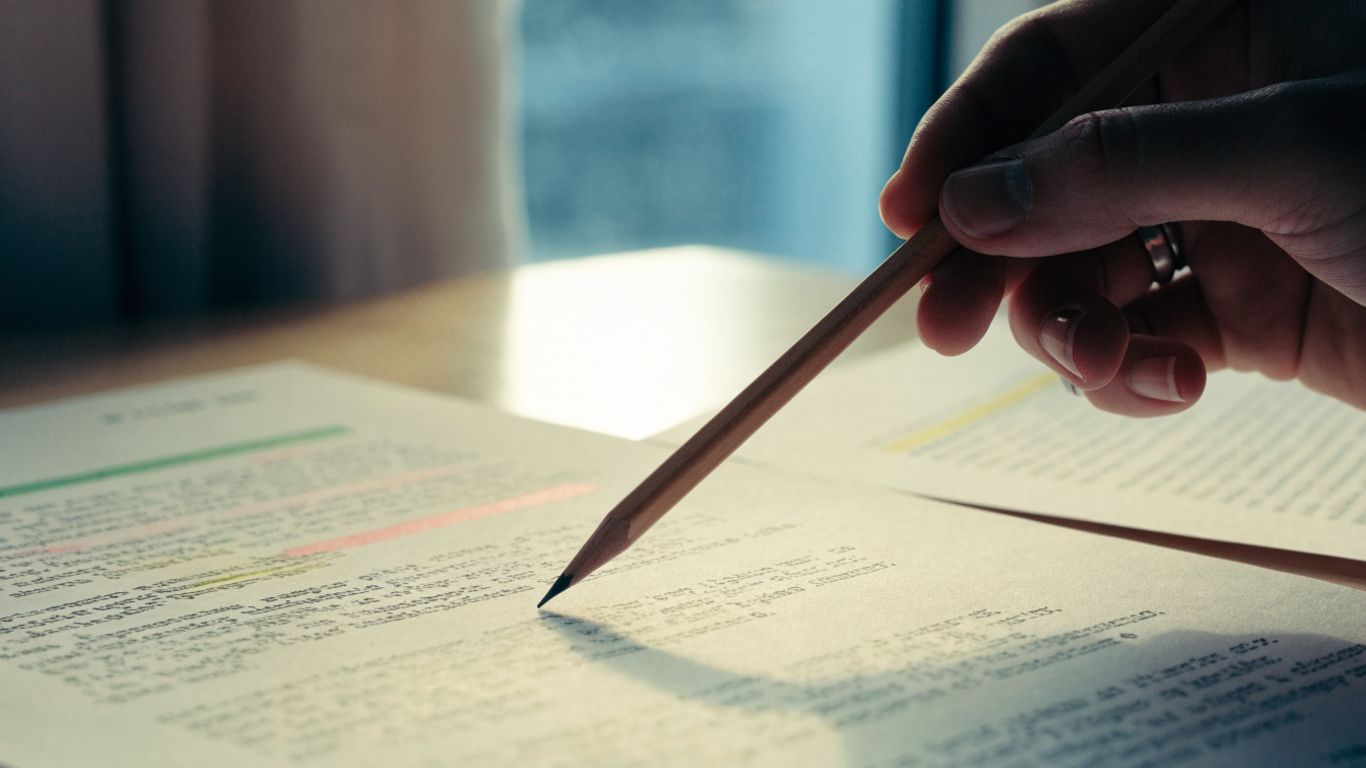
A comparison can show words or passages that appear in one version but not the other, along with wording that has been revised. That makes it easier to notice small edits that are hard to catch by reading drafts one after another. For instance, a changed qualification or a deleted sentence may matter more than a page of minor punctuation adjustments. GPTOne’s GPTOne diff checker compares two texts online and can help surface changed words and moved paragraphs.
Differences between two selected files or text versions
Unlike a timeline, a text compare focuses on the pair you select. You can compare an early draft with a final copy, or choose two other versions that fit the question you are trying to answer. A browser-based tool such as the GPTOne diff checker can compare text and make additions, deletions, and moved paragraphs easier to review. Its results depend on the completeness and consistency of the text you enter, so keep track of which versions you selected.
How formatting changes appear in comparison results
Text comparison tools vary in how they handle formatting, images, tables, and document structure. A plain-text comparison may show that wording changed without preserving the original layout, while a file-based comparison may display some structural changes differently. If the appearance of a document matters, do not assume that a wording-focused diff captures every change. Check the source documents themselves for layout, styling, and embedded material.
Why a text compare does not explain who made each change
A text comparison shows differences between inputs, not the history of who made them. It cannot assign a changed sentence to a collaborator unless that information comes from some separate record. This is why a diff can be exact about changed wording and still leave the central “who?” question unanswered. Use it to inspect the textual gap, then look to a trustworthy history or other documentation for context.
Google Docs version history vs text compare: the key differences
The phrase google docs version history vs text compare describes two approaches that complement each other rather than compete. Version history is oriented around a document’s timeline, while a text compare is oriented around differences between selected versions. Choosing well begins with the question you need answered, not with whichever interface seems more familiar.
Document timeline versus side-by-side differences
A timeline gives you a sequence of document states to explore; a compare gives you a focused view of two selected texts. The practical contrast is easiest to see when you match each method to the task in front of you.
| What you need to know | Version history | Text compare |
|---|---|---|
| When a change appears | Provides a timeline of recorded states | Does not establish when a difference occurred |
| What changed between two drafts | Lets you review document states | Highlights differences between the selected inputs |
| Who is associated with edits | May show collaborator context | Does not independently attribute changes |
| Which two versions are compared | You navigate available history | You choose the two inputs |
Use the timeline when you need to find a point in the document’s past; use a compare when you have two specific drafts and want their textual differences. For a close review, you may need both: history to identify the relevant states, then a compare to focus on their wording.
Collaboration context versus precise change detection
Version history can provide collaboration context, while text comparison can make changed wording easier to isolate. Neither replaces the other. If several people edited a document, attribution and timing may help you orient yourself, but a direct comparison of the relevant drafts can still be clearer when you need to see exact additions or removals. GPTOne’s diff checker can help with text differences; it does not supply Google Docs collaborator history.
What each method can and cannot prove
Both methods provide evidence about a document, but evidence has limits. Version history can show recorded states and collaborator context, and a compare can show differences between the versions supplied. Neither, on its own, proves authorship, intent, or whether a passage was written with AI. If you are separately evaluating possible AI-writing signals, you can check AI signals with the GPTOne AI text detector, but treat any detector result as a signal rather than definitive proof.
How file format and document structure affect results
The way a document is exported or copied can affect what a comparison includes. Text alone may omit images, layout, comments, and other structural details; converting a file can also alter spacing or formatting. Before drawing conclusions from a diff, confirm that the material on both sides is comparable and that the parts relevant to your question survived the transfer. When appearance matters, inspect the source documents as well as the comparison output.
When to use each method
Start with the question you are trying to answer. If you need to know how a document changed over time, use its history; if you already have two drafts and want to inspect their differences, compare them directly. In some reviews, the strongest approach is to use both in sequence.
Review a document’s editing timeline in Google Docs
Choose version history when you need to locate an earlier state, see when it was recorded, or understand the order of document activity. It is a sensible first stop if you have lost a passage, are trying to identify a review milestone, or need context about a shared document. Select the relevant entries and read them as points in a timeline, not as a complete transcript of every decision made along the way.
Check exactly what changed between two drafts
Choose a text compare when the question is narrowly about the difference between two known drafts. This is useful for reviewing revisions, checking whether a requested change appeared, or seeing how a final version differs from an earlier copy. A comparison works best when the two inputs are complete and clearly identified; otherwise, missing pages or mismatched sections can create a misleading impression of what changed.
Investigate edits when several people collaborated
When multiple collaborators are involved, use history to understand the recorded timeline and any available attribution. Then compare the specific drafts that matter if you need a closer look at changed wording. Keep the two kinds of evidence separate: history provides context about recorded edits, while the compare surfaces differences. That distinction helps you avoid assigning a change to someone based only on a textual diff.
Choose a method for audits, approvals, or dispute resolution
For routine approval, a named checkpoint and a focused comparison may be enough to confirm that requested wording is present. For an audit or dispute, preserve original materials and document how you selected the versions. The right method depends on the claim at issue: a timeline may help establish sequence, while a comparison can clarify textual differences. Neither should be treated as a complete record of intent or authorship.
How to compare Google Docs versions reliably
A reliable comparison starts before you open a tool. Decide which question you need to answer, identify the relevant versions, and keep the source material intact. Small choices—such as comparing a clean copy with the wrong draft—can change what the result seems to say.
Find and label the versions you want to review
First locate the document states that correspond to the period or milestone you care about. Record their dates or labels, and make sure you know which one is the earlier and which one is the later version. If the available names are vague, note your own description outside the original document so you can retrace your choices. Clear identification prevents a correct comparison from being attached to the wrong question.
Copy or export versions before using a comparison tool
Work from copies so the source document remains untouched during review. A simple sequence helps keep the process orderly:
- Identify the two document states you intend to compare.
- Make separate copies or exports and label each with its source and date.
- Confirm that both copies contain the same relevant sections.
- Run the comparison, then retain the inputs alongside the result.
This process gives you a trail back to the materials you used. A browser-based comparison such as GPTOne’s diff checker can help surface wording changes and moved paragraphs, but it should not replace the original copies when you need to verify a result.
Confirm that the comparison includes the full document
Before interpreting a result, check that both inputs include the full text you intended to review. A missing opening section, omitted appendix, or partial copy may look like a large edit when it is simply absent from one input. Compare document length and section order, and spot-check the beginning and end. If you only need to review one passage, label the comparison as partial rather than presenting it as a whole-document review.
Check comments, suggestions, and formatting separately
Comments and suggestions can carry important review context, but they may not appear as ordinary text in a comparison. Formatting, tables, images, and other elements can also be handled differently depending on how the document was copied or exported. Inspect those items in the source document instead of assuming a text diff includes them. Keeping content changes distinct from review annotations makes your notes more precise.
Limitations and practical safeguards
No single view captures every part of a document’s history. What you can inspect may depend on access, while copying or restoring content can change what is currently open. A little care around permissions, source copies, and conversions can prevent avoidable confusion.
Access and permissions can affect available history
The history you can see may depend on your access to the document and its account or sharing settings. If a timeline is unavailable or incomplete from your view, do not assume that no earlier states exist. Ask the document owner or administrator about appropriate access, and record any limits that affected your review. Avoid bypassing permissions or treating an incomplete record as conclusive.
Restored versions may change the current document
Restoring an earlier version can replace the document’s current state, so pause before using restoration as a way to inspect old content. If you only need to read or compare an earlier state, keep the current document safe and work from a copy when possible. Make sure collaborators know before you change a shared working document. A restore is an editing action, not merely a view of history.
Conversions can introduce differences unrelated to writing
Exporting and converting documents may affect layout or formatting, and those differences can appear alongside actual wording changes. A shifted table or altered spacing does not necessarily mean the underlying text was revised. When the result looks surprising, compare the source files and check whether the conversion changed their structure. Explain any known conversion limits in your review notes.
Keep source copies when accuracy or evidence matters
If a decision depends on the comparison, preserve the original documents and copies used as inputs. Note the versions, dates, and process you followed, and keep the result with that record. A diff is easier to evaluate when another person can verify the same materials. This safeguard will not turn a comparison into proof of intent, but it makes your review more transparent and repeatable.
Conclusion
Google Docs version history helps you explore a document’s recorded timeline; a text compare helps you see what differs between two selected versions. Use the method that fits your question, use both when you need context and detail, and preserve source copies when the stakes are high. If you have a separate question about possible AI-writing signals, the GPTOne AI text detector can offer another data point—but no single result proves authorship.
Frequently Asked Questions
The key is to match the method to the question: timeline, attribution context, or exact textual differences. These answers address common points that come up when you review document versions.
Is Google Docs version history the same as a text compare?
No. Version history helps you review recorded document states over time, while a text compare shows differences between two selected versions.
Can version history show who changed a document?
It may show collaborator information associated with edits, depending on what is available to you. That context does not establish the full circumstances or intent behind a change.
Can a text compare tell when an edit happened?
Not by itself. A text compare focuses on differences between its two inputs; use a document timeline or other records if you need timing context.
Which method is better for finding deleted wording?
Version history can help you locate an earlier state that contains the wording, while a text compare can make the deletion easier to spot between selected drafts. The best choice depends on whether you know which versions to compare.
Do text comparison tools catch formatting changes?
It depends on the tool and the form of the input. A text-focused comparison may not preserve or fully show formatting, layout, comments, images, or other document elements.
Can version history prove who wrote a passage?
No. It can provide information about recorded changes and collaborators, but it cannot definitively establish authorship or explain every step in a writing process.
Should I compare the original document or an exported copy?
Keep the original intact, and use clearly labeled copies or exports for comparison. Check that conversion did not remove relevant text or alter structure before interpreting the result.