How to Compare Two Versions of a Document Online (Free, Nothing Uploaded)
 Sana Bano
·October 19, 2026
·9 min read
Sana Bano
·October 19, 2026
·9 min read
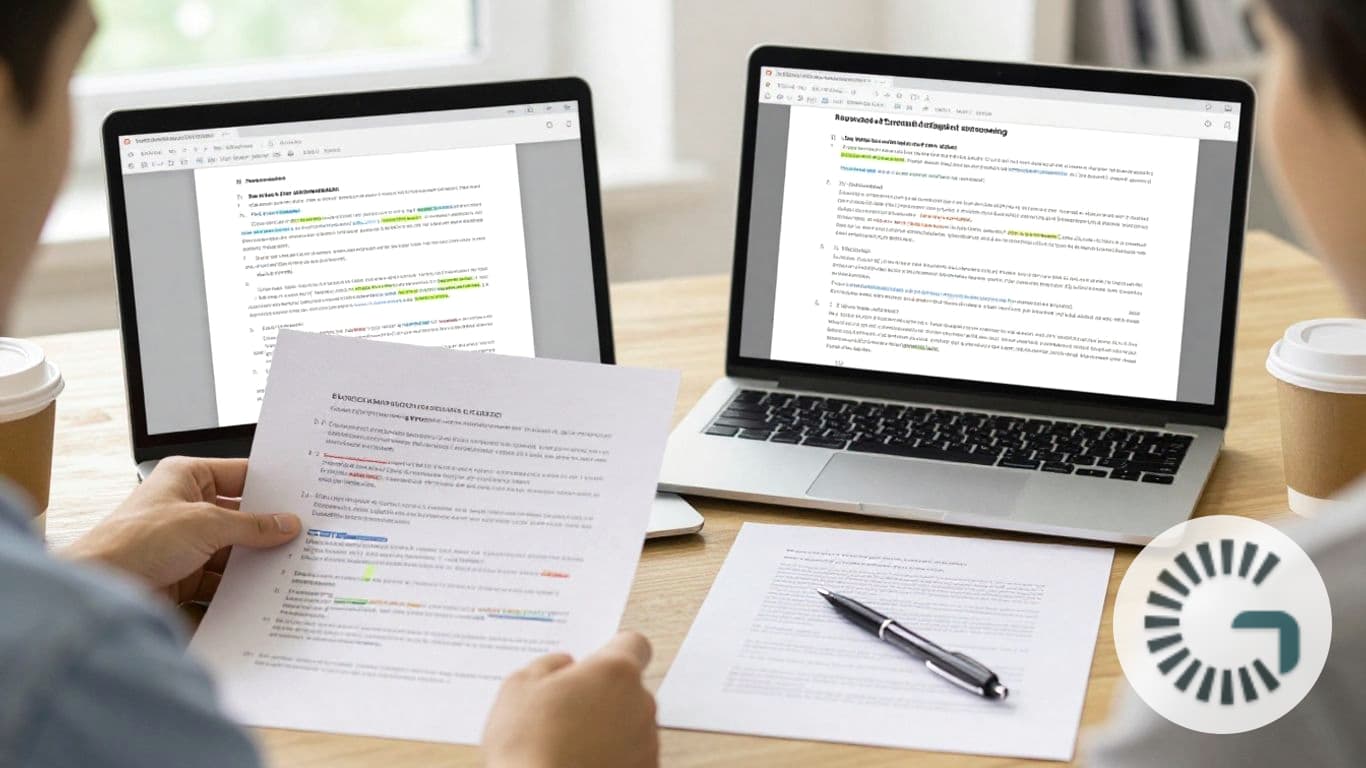
Compare two versions of a document online for free. Review edits carefully and consider privacy before sharing text.
Key Takeaways
A careful comparison can reveal small edits that are easy to miss when you scan two drafts by eye. Choose a method that fits your file and privacy needs, then review each change in context.
- Keep an untouched copy of each version before you begin.
- Check whether a tool accepts your file type or requires pasted text.
- Use a side-by-side view to trace additions, deletions, and rewrites.
- Read changed passages in context before deciding what to keep.
- Treat privacy and retention details as part of choosing a tool.
Why Compare Document Versions Online?
When a document has been revised more than once, familiar paragraphs can make new edits hard to spot. A comparison brings changes into view, helping you find changes between two documents without relying on memory or rereading every line with equal attention. That can be useful for essays, reports, proposals, and shared drafts.
The value is not just speed. A clear comparison can help you check whether a key detail was removed, a sentence was reworded, or a paragraph moved during editing. Look for the exact boundary of the change before judging what it means; a highlighted word may alter the meaning of the whole sentence. A word-level difference guide can help you understand why close comparisons are useful when edits are subtle.
Privacy deserves the same attention as convenience. “Online” does not automatically mean “nothing uploaded,” so check how the specific tool handles pasted text and files before using it with confidential material. If your goal is to compare two versions of a document online without uploading a file, use a workflow that lets you paste the text and confirm the tool’s data practices first.
The Best Free Online Document Comparison Tools (No Upload Required)
The right choice depends on what you have in hand and how much detail you need. Some services focus on comparing text, while others describe support for document files; do not assume that a free option accepts every format or handles private material the same way. Before you begin, decide whether you can work with copied text or need to compare the original files.
Diffchecker: Simple and Effective
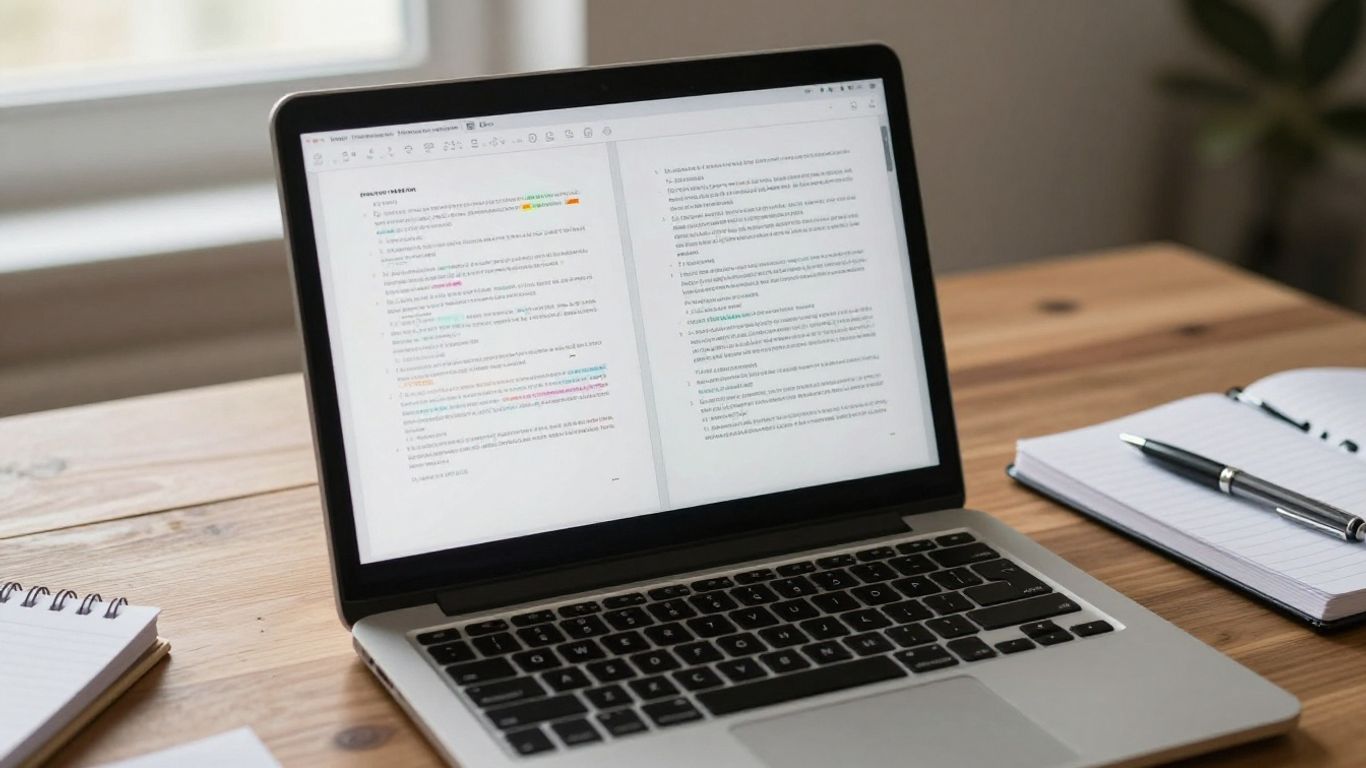
Diffchecker is described as an online tool for comparing text, code, and data, with changes highlighted line by line. That makes it a reasonable starting point when you want to inspect two blocks of text or structured content without installing software. For long prose, check whether line-based highlighting gives you enough detail to catch the edits you care about.
Draftable: Powerful Features for Professionals
For formal documents, first confirm which formats the online option accepts rather than relying on a general label like “professional.” The available description covers comparing text, Word documents, and PDFs online. You can review the online comparison details before deciding whether the file types and workflow suit your task.
Text Compare Tool: Versatile for Various Text Formats
A tool with a broad name is a prompt to check its input requirements, not a promise that it supports every file format. If you can paste text, think about how the source format affects what you compare: copied text may omit layout, while a PDF or word-processing file may preserve a different view of the content. This quick reference can help you choose what to prepare.
| Material you have | What to check first | Useful comparison focus |
|---|---|---|
| Plain text | Whether the tool accepts pasted text | Word and sentence edits |
| Word document | Whether the file type is supported | Revisions and formatting context |
| Whether the tool accepts PDFs | Text changes across pages | |
| Code or data | Whether line-based comparison is available | Insertions, deletions, and moved values |
Use the table as a preparation guide, not a feature list for any one service. If the format you have is not supported, copy the relevant text into the comparison fields and inspect the result in its original document afterward.
Online-Utility.org: A Straightforward Option
If you come across Online-Utility.org while searching, approach it the same way you would any unfamiliar comparison page: check what you can enter, whether you need to create an account, and what its privacy information says. A straightforward interface can make a quick task easier, but it does not replace checking the details that matter for your document. When the text is sensitive, choose only a workflow whose handling practices you understand.
How to Use Online Document Comparators: A Step-by-Step Guide
A reliable comparison starts before you open a tool. Keep your original versions unchanged, and decide whether you need to compare complete documents or only the sections that were revised. If you are working with sensitive content, review the tool’s privacy information before pasting or selecting anything.
Step 1: Access the Tool
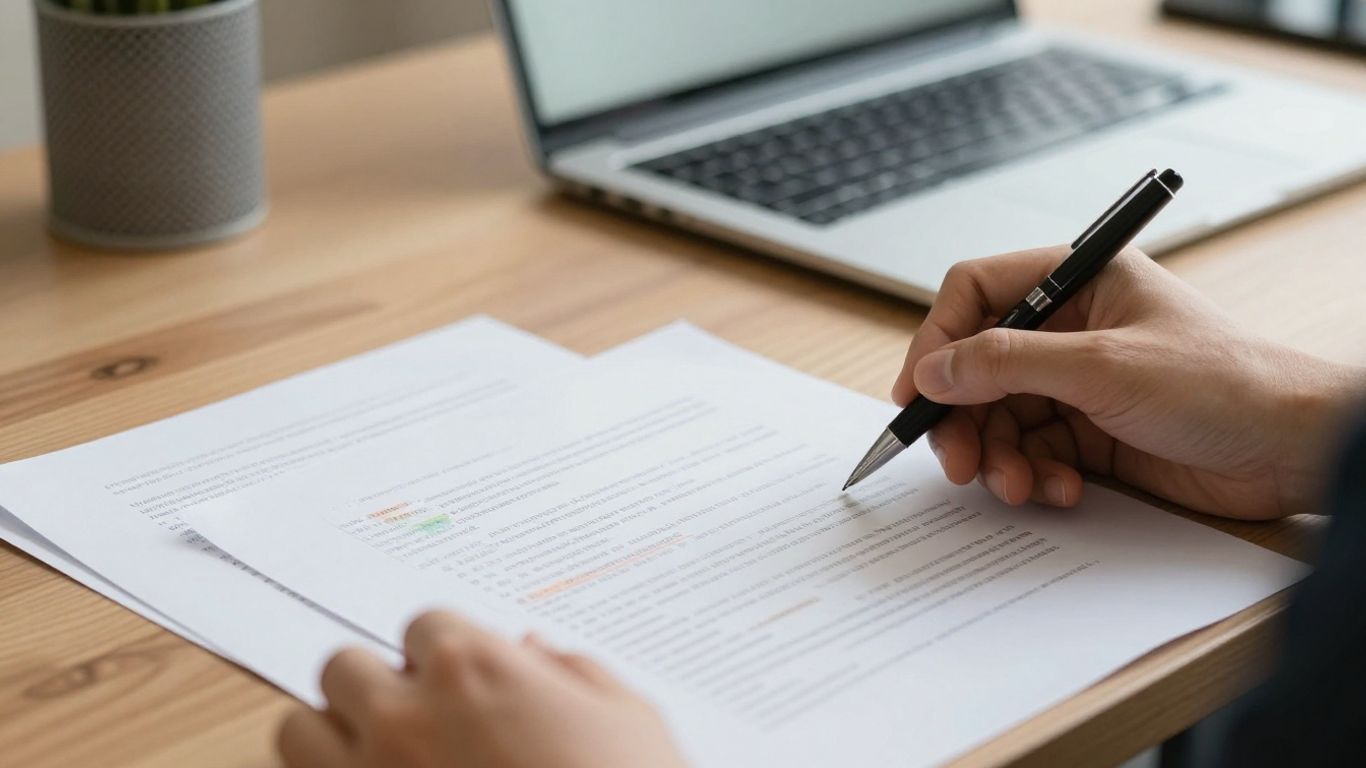
Open the comparison page you have chosen and check that it supports the kind of input you plan to use. If the page offers text fields, you can often compare copied passages; file-based workflows depend on the formats it lists. Take a moment to read its privacy or data-handling information, especially before using work, client, or academic material.
Step 2: Input Your Documents
Prepare the two versions in a consistent way so that the comparison reflects actual edits rather than accidental formatting differences. If you are pasting text, label the earlier and newer version clearly, then use a short checklist before running the comparison:
- Paste the original version into the first field.
- Paste the revised version into the second field.
- Keep headings and paragraph breaks where possible.
- Remove unrelated material only if it appears in neither version you need to review.
With both passages in place, confirm that you have not reversed their order or missed a section. Consistent input makes the results easier to interpret, particularly when you compare document versions across several rounds of editing.
Step 3: Analyze the Differences
Read the highlighted changes one passage at a time. Additions and deletions are easier to evaluate when you consider the full sentence and the surrounding paragraph, rather than treating each marked word as an isolated decision. A changed number, name, or qualification may deserve a closer check than a cosmetic edit.
If the result shows many differences, pause and sort them by importance: factual changes, structural changes, and wording changes. Then verify anything consequential against the source material or the person responsible for the revision. A comparison can show what changed, but it cannot tell you whether a change is correct.
Tips for Effective Document Comparison
Start with clean, stable copies of both versions. If you can, remove comments or unrelated boilerplate only when doing so will not hide part of the revision history you need. Keep filenames or notes that identify which draft came first; an accurate comparison still becomes confusing if the versions are mislabeled.
Choose the level of detail that matches your task. A line-by-line view may help with structured material, while word-level changes are often easier to assess in ordinary prose. If a tool reports extensive changes, scan for moved passages and rewritten sentences as well as small substitutions. A text comparison walkthrough offers another perspective on reviewing changes between drafts.
Finally, treat privacy checks as a normal part of the process. Avoid putting confidential or personal information into a service until you understand its handling practices, and use an approved workflow when workplace or school policies require one. Once you have reviewed the diff, read the final document from beginning to end; that catches awkward transitions a change list may not make obvious.
Conclusion: Streamline Your Document Review Process
A good comparison makes revision easier to inspect, but it does not replace your judgment. Keep both source versions intact, choose an input method that suits the document, and review each meaningful change in context. That simple routine helps you compare two versions of a document online without losing track of what matters.
For a more dependable result, slow down around changes that affect facts, tone, or responsibility. Confirm important edits with the relevant source or reviewer, and give the final version one uninterrupted read after the comparison is complete. A few minutes of careful checking can prevent a small unnoticed edit from becoming a larger problem.
If you also need to assess whether writing appears AI-generated, that is a separate question from tracking edits; you can try the detector as another review step. Keep the two checks distinct: a document comparison identifies differences, while an AI detector offers signals to consider rather than proof of authorship.
Conclusion
When you preserve the originals, prepare the text carefully, and inspect changes in context, document comparison becomes a practical part of editing rather than another hurdle. Choose a method that fits your file and privacy needs, then make the final call yourself.
Frequently Asked Questions
Can I compare two versions of a document online for free?
Yes. Some online comparison tools offer a free option, though supported inputs and available features vary. Check the tool’s current terms before relying on it for a particular file type.
Can I compare documents without uploading files?
That depends on the tool and how you use it. Pasting text instead of selecting a file may avoid a file-upload step, but it does not by itself establish how the service handles that text. Review the privacy information before entering sensitive content.
What should I do if my document format is not supported?
If the tool allows text input, copy the relevant content into its fields and compare those passages. Then return to the original files to check formatting or other details that copied text may leave out.
How do I find changes between two documents quickly?
Use a comparison view that marks additions and deletions, then review the marked passages in context. Start with factual or structural edits before spending time on minor wording changes.
Should I compare the older version first?
Yes, it is usually clearest to place the earlier version first and the revised version second. Check the labels before running the comparison so you can interpret additions and removals correctly.
Can a document comparator tell me whether an edit is correct?
No. A comparator can identify differences, but it cannot determine whether a changed fact, number, or instruction is accurate. Verify important edits against the source or with the responsible reviewer.
What is the best way to review a large number of changes?
Work through the results in sections and group edits by importance, such as factual, structural, or stylistic changes. After resolving them, read the full revised document once to catch issues that are easier to notice in continuous prose.