How to Compare Two Word Documents: Word's Compare Tool vs an Online Diff
 Sana Bano
·November 1, 2026
·8 min read

Compare two word documents in Word or a browser, spot meaningful edits, and choose the right review method.
Key Takeaways
Word’s Compare tool is useful when you need a marked-up document, while a browser-based text diff can make wording changes easier to scan.
- Use Word when you want changes shown inside a new, reviewable document.
- Keep the original and revised files clearly identified before comparing.
- Formatting and paragraph reflow can make a comparison look busier than the actual edits.
- A text-only diff can help when you want to compare documents without uploading them.
- For contracts or consequential edits, inspect every meaningful change in context.
The short answer: Word's Compare works, but it is slow for prose edits
If you need to compare two Word documents, Word’s built-in Compare tool is a solid place to start. It creates a new document with revision marks showing differences between an original and a revised file, while leaving your source documents unchanged. That makes it useful when you want a formal review copy rather than a quick glance at changed wording.
The trade-off is that a heavily marked-up result can take time to read, especially when paragraphs have been rewritten or formatting has shifted. A small edit may show up alongside changes to spacing, layout, or styles, so you need to separate meaningful revisions from visual noise. For a short essay or article, that can feel like more work than the edit itself.
The right method depends on what you need to learn. If you want revision marks in a Word file, use Compare; if you only need to see how the wording differs, a text diff may be easier to scan. The key is choosing the view that fits the question, and not mistaking a busy comparison for a major rewrite.
How to use Review > Compare in Microsoft Word, step by step
Start with both versions saved as separate files, and decide which one is the original. Open either file in Word, then go to Review, select Compare, and choose Compare Documents. In the dialog, identify the original and revised documents so the result reflects the direction of the edits you want to review.
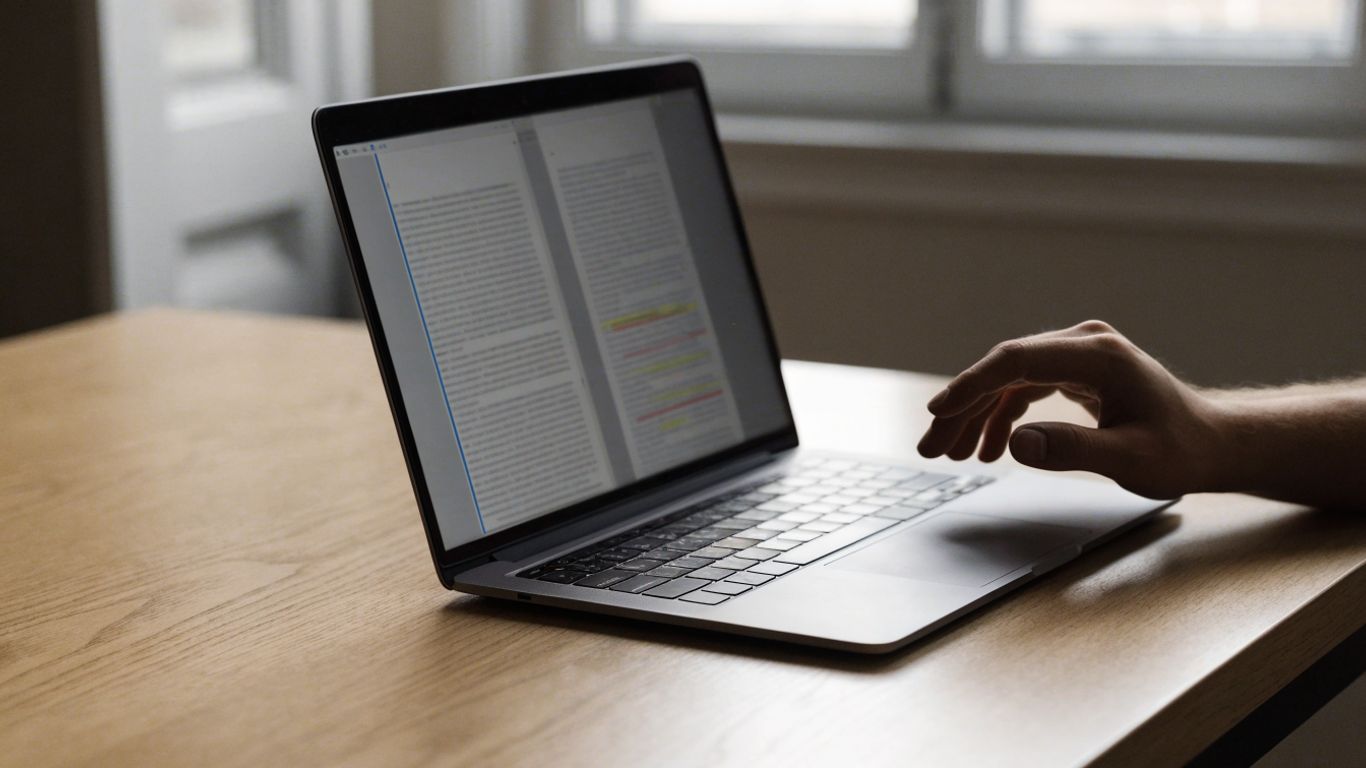
Word creates a new comparison copy and marks changes from the revised version; your original files remain untouched. You can then read the result in the document, using the revision marks to follow additions and deletions. Microsoft’s Word comparison guide also describes comparing and merging versions, but for a straightforward review, start with Compare rather than Combine.
Before you begin, make the file choices deliberately: an accidental swap can make the changes harder to interpret. A quick check of the document names and dates helps keep the review grounded in the right pair of drafts. If you’re unsure which copy is newer, open both first and confirm their contents rather than relying on filenames alone.
Where Word's Compare gets noisy: formatting changes, reflowed paragraphs
A comparison can report more than the sentence edits you care about. Changes to formatting or layout may add visual clutter, and a paragraph that has been reorganized can look like a broad set of deletions and insertions rather than a simple move. That does not automatically mean Word is wrong; it means you need to inspect the result at the level that matters to your task.
This quick guide can help you decide whether Word’s marked-up document is the right view or whether a simpler text comparison will be easier to read:
| What changed | What you may see | A useful next step |
|---|---|---|
| A few words | Local additions or deletions | Read the sentence in context |
| Paragraph order | A larger block of marked text | Check whether the same idea appears elsewhere |
| Font or spacing | Marks beyond the wording edits | Separate appearance changes from content changes |
| Sentence structure | Several edits across one passage | Read the whole revised paragraph before judging |
When the document looks unusually busy, compare the actual sentences rather than counting marks. A reflowed paragraph can preserve its meaning even when its wording has changed substantially, while a tiny edit to a date or condition may matter a great deal. Context, not the number of redlines, is what tells you which changes deserve attention.
Comparing the text only in a browser, nothing uploaded
A browser-based text comparison is handy when you want to compare the words without bringing file formatting into the review. You paste the earlier and later versions into separate fields, then inspect the differences the tool highlights. For a quick prose check, that can be a simpler route than opening and navigating a full document.

If privacy is part of your decision, look closely at how a tool handles text before using it. Some workflows process the comparison in the browser without uploading the text; others may send content to a service. This text-only comparison option is described as working without file uploads, which can suit a quick check when you want to compare documents without uploading them.
A text diff also has a limit: it cannot preserve the complete look of your Word file. It is most useful when the question is about changed words, not page layout, tracked formatting, or the final appearance of a document. If you need those details, return to the document itself before accepting or sharing a revised version.
Reading the result: added, removed and moved sentences
A good comparison is not just a list of what changed; it is a way to understand what the revision did. Added wording may introduce a new claim or clarify an existing one, while removed text can show what the writer chose to take out. Read each change with the surrounding sentence or paragraph, since a phrase that looks harmless on its own may alter the meaning of a condition or argument.
Moved sentences can be harder to spot because the words may still be present, just in a different place. Check whether the new order improves the logic, changes emphasis, or separates a qualification from the point it was meant to limit. For essays and articles, organization can matter as much as individual word swaps.
When a difference looks significant, ask three practical questions: Is the underlying claim still accurate? Has a qualification or example disappeared? Does the new placement change how a reader would understand the passage? Those checks turn a raw comparison into a useful editorial review rather than a mechanical tally of edits.
Which method to use for contracts, essays and manuscripts
The best way to compare two documents depends on the cost of missing a change and the kind of detail you need to preserve. Contracts call for careful review of wording in context; essays and manuscripts often benefit from a faster scan of revisions to phrasing and structure. If your goal is to compare Word documents online, first decide whether you need a document-level redline or just a text-level view.
Use this as a practical starting point, then adjust for the stakes and the format of your drafts:
- Choose Word Compare when you need revision marks in a new document.
- Choose a text diff when the main question is what wording changed.
- Review formatting separately if page appearance or styles matter.
- For important documents, verify every consequential change against the source files.
For a contract, pay particular attention to numbers, dates, defined terms, and exceptions; a tiny wording change can have a large effect. For an essay or manuscript, look beyond substitutions and ask whether the argument, sequence, or voice has shifted. In either case, no comparison replaces a careful read of the final version.
Conclusion
Word’s Compare tool is useful when you need a marked-up review copy, while a browser-based text diff can make wording changes easier to inspect. Choose based on whether formatting, document context, or a quick prose check matters most, and read consequential edits in their full context. If you’re separately evaluating writing for signals of AI authorship, GPTOne’s Free AI Detector analyzes writing for those signals; try the free detector as a separate check, not a substitute for comparing versions.
Frequently Asked Questions
Can I compare two Word documents without changing the originals?
Yes. Word creates a separate comparison document with revision marks, leaving the original and revised files unchanged.
How do I compare two Word documents for differences?
In Word, open Review, choose Compare, and select Compare Documents. Identify the original and revised files, then inspect the new comparison copy.
Does Word Compare show additions and deletions?
Yes. The comparison marks differences from the revised document, including inserted and deleted material, so you can review changes in context.
Why does my Word comparison show so many changes?
Formatting shifts, paragraph reflow, and rewritten sentences can create a busy result. Read the surrounding text and distinguish content edits from layout or style changes.
Can I compare documents without uploading them?
Some browser-based tools describe text comparisons that run without uploading files. Check the specific tool’s privacy details before entering sensitive material.
Is a text diff enough to review a contract?
It can help you spot wording changes, but it may not preserve document formatting or layout. Review each consequential change in the full document and confirm it against the source versions.
What should I check when a sentence has moved?
Confirm that the sentence still supports the right point, that any qualification remains nearby, and that the new order does not change the passage’s meaning.