AI-generated images: how they work, how to create them, and what to know
 Sana Bano
·September 28, 2026
·15 min read

Learn how ai generated images work, write better prompts, refine outputs, and use them responsibly.
Key Takeaways
AI-generated images can help you explore ideas quickly, but the result still needs your judgment. A clear prompt, careful review, and responsible use make the process more useful.
- A prompt guides an image model by describing what you want to see.
- Subject, composition, lighting, and style give a prompt useful direction.
- Generating and comparing variations is often more effective than chasing a perfect first result.
- Check visual details and intended use before publishing or sharing an image.
- Review privacy, licensing, and disclosure considerations for each project.
What AI-generated images are and how they work
AI-generated images are visuals created by a model in response to instructions, often written as a text prompt. You describe a subject or scene, and the model produces an image that fits those directions. The result is not a photograph of a moment that necessarily occurred; it is a visual output generated from learned patterns. Understanding that distinction helps you set realistic expectations and review what you create.
How text prompts become images
A prompt gives the model clues about the subject, setting, style, and arrangement you have in mind. The system uses those clues to produce an image, but it does not interpret every word with the same precision a person would. If your prompt says “a red bicycle beside a quiet lake at dawn,” the model has to decide how to depict the bicycle, the lake, the light, and their relationship. A text-to-image workflow follows this basic pattern: describe a scene, generate an image, then decide whether the result fits your purpose.
The role of training data and image models
An image model learns associations from examples used during training, such as how visual features tend to appear together. When you provide a prompt, it draws on those learned patterns to create a new arrangement rather than retrieving a single stored picture. Different models can interpret the same instructions differently, so the prompt alone does not guarantee a particular look. That variation is one reason to treat a first output as a draft, not a final answer.
How image generation differs from photo editing
Image generation starts with a prompt and creates a visual output; photo editing begins with an existing image and changes some part of it. The boundary can blur when a tool adds, removes, or alters elements in a photograph, so it helps to describe what actually happened rather than treating every AI-assisted image as fully generated. GPTOne provides an AI Image Detector that assesses whether images appear real, AI-generated, or AI-modified. Its results are signals to consider, not definitive proof of how an image was made.
How to create an AI-generated image
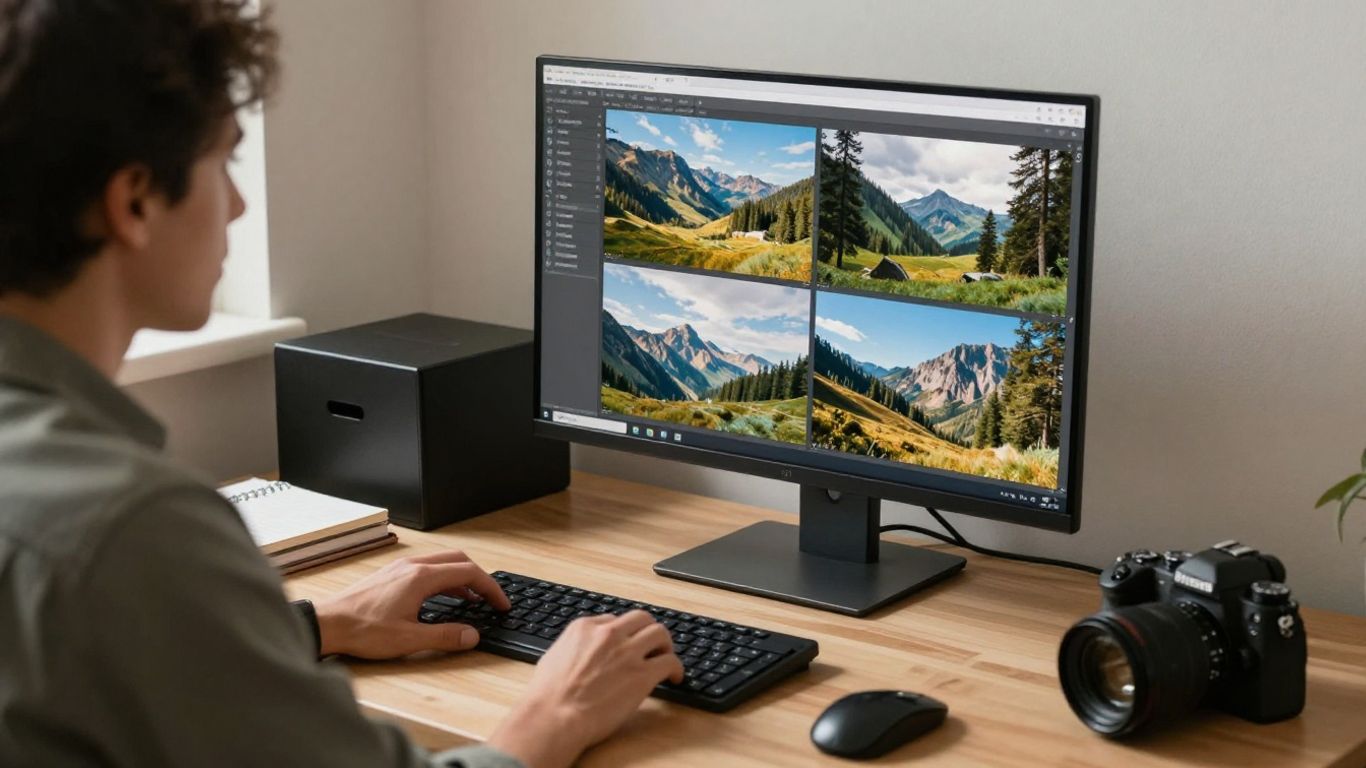
Creating an image usually takes a few rounds: choose a tool, describe the result you want, and review what comes back. Your first prompt does not need to be elaborate; a concise starting point often makes it easier to see what the model understands. From there, you can adjust the description or available settings. The useful goal is a visual that works for your actual task, not simply an image that looks impressive on its own.
Choose a generator that fits your needs
Start with the practical requirements: what kind of image you need, where it will appear, and whether you need to refine the output afterward. A generator’s controls and terms can differ, so check its available settings and permitted uses before relying on it for a project. This quick comparison can help you decide what to prioritize.
| Your priority | What to look for | A useful question |
|---|---|---|
| Early ideas | A simple prompt-based workflow | Can you explore a few directions quickly? |
| A specific format | Controls for image shape or size | Will the result fit your intended space? |
| Revisions | Options to adjust or regenerate | Can you correct details that miss the mark? |
The best fit depends on your use, not on how many controls a tool offers. If you are creating a draft for a blog, for instance, ease of iteration may matter more than fine-grained settings.
Write a clear prompt with subject, style, and composition
Give the prompt a clear center: name the main subject, then add the setting and visual treatment that help define it. Composition matters too. “A ceramic cup on a wooden table, close-up, soft natural light” gives a model more direction than “a nice cup.” Specific instructions help, but piling on unrelated details can make the image less coherent.
Adjust settings such as aspect ratio and image count
Settings help shape the output around its destination. A wide image may suit a presentation header, while a square composition can work better for a profile tile or social post. If the tool lets you choose how many images to generate, a small group of options can be useful when you are still exploring. Choose settings that support the job rather than changing everything at once.
Generate variations and refine the strongest result
It is often easier to compare several drafts than to predict every detail in a single prompt. Look for the version with the strongest composition or clearest subject, then adjust one or two things at a time. A simple comparison keeps the process focused:
- Keep the subject and change the setting.
- Keep the composition and try a different style.
- Change the lighting while leaving the other details alone.
- Remove instructions that seem to conflict or distract.
After each round, pause and check whether the image is closer to your intended use. Small, deliberate changes make it easier to understand which part of the prompt is helping.
How to write better image prompts
A good prompt is a compact visual brief, not a long inventory of everything you can imagine. You can begin with the most important object or person, then describe the scene and the mood you want. The strongest instructions are usually concrete and consistent with one another. Leave room for the model to fill in minor details without losing the idea that matters to you.
Add specific visual details without overloading the prompt
Choose details a viewer could actually see: the material of an object, the season, a color palette, or the distance between subjects. Limit the prompt to details that shape the result. If you ask for a minimalist scene and also request a crowded background, the model has to reconcile competing directions. A clear visual priority gives the model a better chance of producing a focused image.
Describe lighting, perspective, and composition
Lighting and viewpoint can change the feeling of an image even when the subject stays the same. You might ask for soft window light, an overhead view, or a close crop that places the subject off-center. These terms help you describe how the scene should look, rather than just what it contains. If the first result feels flat or cluttered, revise one compositional instruction and compare again.
Use reference images and image-to-image features
Some tools let you provide a reference image or use an existing image to guide a new result. When available, this can help communicate a palette, layout, or general visual direction that is hard to put into words. Check what the tool does with uploaded material before sharing it, especially if the image belongs to someone else or contains private information. A reference should guide the work without replacing your own review of the output.
Troubleshoot common issues such as distorted text or hands
Small details can be inconsistent, especially when an image contains hands, repeated objects, or lettering. If a detail matters, inspect it at full size rather than assuming it is correct from a thumbnail. You can simplify a crowded prompt, make the important object more prominent, or try another variation. For an additional perspective on visual cues, see these visual authenticity checks; apparent artifacts can be clues, but they do not establish an image’s history on their own.
Common uses for AI-generated images
AI-generated images can be useful when you need to explore a visual direction before commissioning or producing finished work. They can also provide a starting point for content where a custom image is helpful but a specific real-world photograph is not essential. In every case, make sure the image suits its audience and does not imply an event or person is real when that could mislead someone. The image is only one part of the communication around it.
Create concepts for marketing and social media
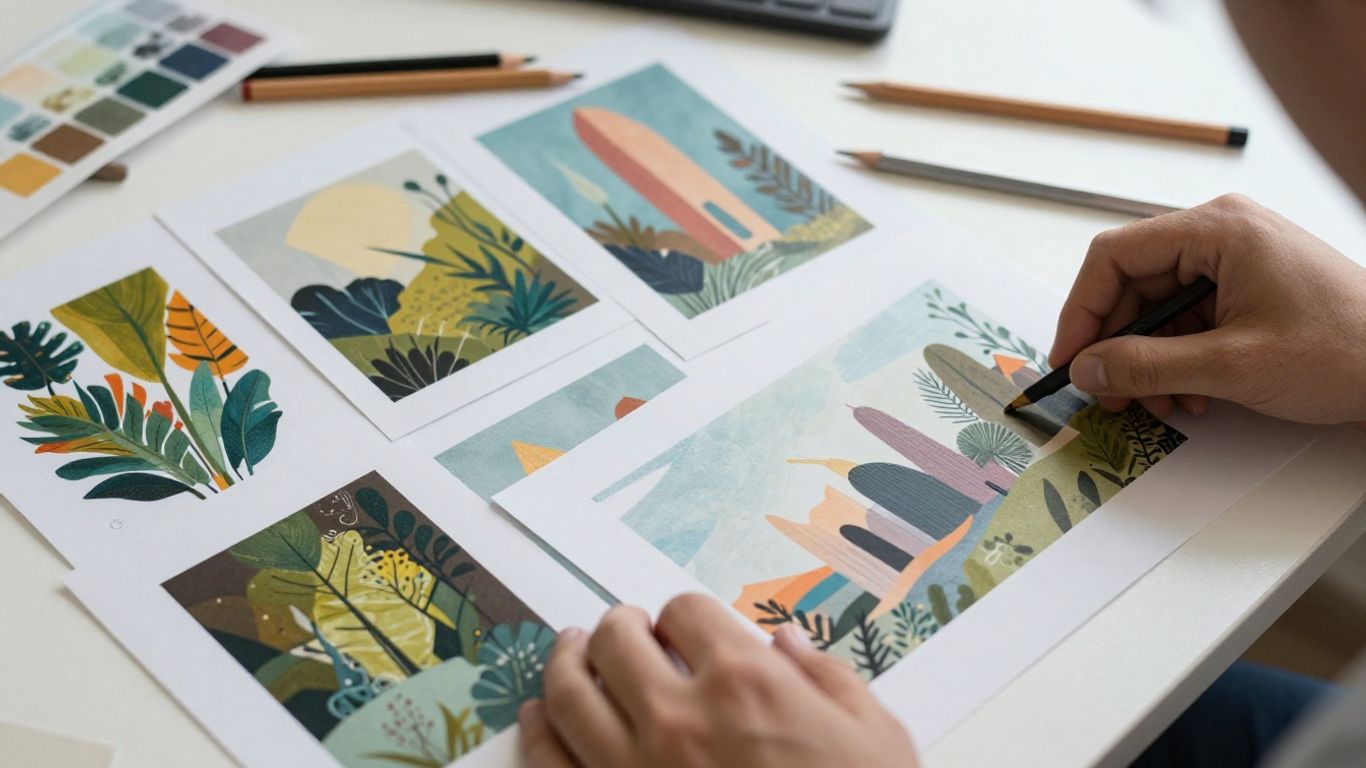
A generated image can help you test campaign moods, color choices, or possible layouts before settling on a final direction. For social media, consider how the subject will appear in a small crop and whether the image leaves room for any separate design elements. You may also want to keep a consistent visual approach across a series. Review each image in the context where people will actually encounter it.
Develop illustrations, mood boards, and design mockups
For early design work, generated visuals can help you gather references and communicate an atmosphere to collaborators. A mood board might bring together textures, lighting, and color ideas, while a mockup can suggest how a concept could feel in use. Treat these as exploratory material unless you have checked the details and rights needed for a finished project. That distinction keeps a draft from being mistaken for a production-ready asset.
Produce custom visuals for presentations and blogs
A custom visual can make an abstract point easier to follow or give a presentation a more cohesive look. For a blog, consider whether the image adds information or merely decorates the page. Keep it relevant to the nearby text, and provide useful alternative text when the image carries meaning for readers using assistive technology. A well-matched visual should support the explanation, not compete with it.
Explore personal projects and creative ideas
Personal projects are a low-pressure place to test unusual combinations of subjects, styles, and settings. You can use a prompt to sketch out a fictional scene, try a new visual mood, or make a concept you might not have attempted by hand. Keep the process playful, but still respect other people’s work and privacy. If an image could be mistaken for a real person or event, add context when you share it.
How to assess and improve image quality
A polished appearance does not automatically mean an image is accurate, coherent, or appropriate for its purpose. Take a moment to look beyond the overall impression and check how individual details fit together. Then consider whether the format, tone, and context suit the people who will see it. A careful review can catch problems that are easy to miss while you are focused on prompting.
Check anatomy, consistency, and fine details
Inspect faces, hands, reflections, edges, and repeated objects for details that appear inconsistent. Check whether light and shadow agree across the scene and whether an object changes shape between nearby parts of the image. GPTOne’s AI Image Detector combines model-based detection with visual and frequency-based signals, metadata and generator fingerprints, and provenance checks; results can include a confidence score, signal analysis, and a region heatmap. Such information can support review, but it should not be treated as conclusive proof.
Match the image to its intended audience and format
An image that works in a full-screen draft may become hard to read when cropped into a narrow banner. Check the actual dimensions and viewing context, then make sure the focal point remains clear at the size people will see. Tone matters too: an image that feels playful in a personal project may be unsuitable in a serious report. Adjust the composition or choose a different draft if the message does not fit.
Edit outputs with inpainting, upscaling, or external tools
When a tool offers editing features, use them to address a specific problem rather than making changes just because you can. You might correct one distracting area, adjust the crop, or prepare a larger version for a particular display size. Keep an untouched copy of the initial result if you need to compare changes or document the process. After editing, review the whole image again; a local fix can affect the balance of the scene.
Keep accessibility and image context in mind
Alternative text should explain the image’s relevant content, not list every visible detail. If a generated image is decorative, its surrounding text may already provide the information a reader needs; if it communicates something important, describe that point clearly. Context also includes how an image is captioned and what viewers might reasonably infer from it. For consequential decisions, visual inspection and automated analysis should be treated as supporting evidence rather than a final verdict.
Copyright, privacy, and responsible use
Responsible use begins before you generate an image: consider what information you will provide, what you plan to do with the result, and who may see it. Rules can vary between tools and uses, so avoid assuming that every output can be used in every setting. You should also think about whether an image could confuse viewers or expose information that was not yours to share. A little care up front can prevent avoidable problems later.
Review the generator’s terms and commercial-use rules
Read the tool’s terms for the specific use you have in mind, including any limits that apply to commercial projects or uploaded materials. Do not assume that having a downloaded image settles every question about permission or ownership. If the image will be central to a business, publication, or client deliverable, keep a record of the tool and terms you reviewed. When the rules are unclear, seek appropriate guidance before using the image.
Avoid sharing sensitive or confidential reference material
A reference image may include private details even when those details are not central to your prompt. Before uploading it, consider whether it contains a face, location, document, unreleased design, or confidential work. Check the service’s handling of uploaded material and use an approved workflow for sensitive content. Image analysis in GPTOne’s AI Image Detector is designed to run locally in the browser, as part of a privacy-focused workflow; that documented capability does not remove the need to review your own sharing choices.
Disclose synthetic images when context calls for it
People may reasonably assume an image is documentary when it appears beside news, research, or a factual claim. In those settings, make the image’s synthetic nature clear when leaving it unstated could mislead. The right level of disclosure depends on the context, but clarity matters more than clever wording. If you are unsure how viewers will interpret an image, explain how it was created.
Watch for bias, misleading depictions, and deepfakes
Generated images can repeat stereotypes or depict people and events in ways that look plausible but are not true. Review who is shown, how they are represented, and whether the image could be confused with a real photograph. A deepfake, as our guide to deepfake technology explains, generally alters or imitates a real person, while a fully generated image may depict a scene that did not exist; either can mislead when presented without context. For high-stakes use, combine careful source review with human judgment and treat automated detection as one signal among several.
Conclusion
AI-generated images are most useful when you approach them as drafts to guide, compare, and review. Clear prompts help you explore a direction, while careful checks make it easier to catch visual errors and consider how an image may be understood. Before you share or publish a result, take a moment to check its fit, permissions, privacy implications, and context. That final review is part of creating responsibly.
Frequently Asked Questions
These answers cover practical questions that come up when you create or evaluate generated visuals. The details can vary between tools, so check the relevant settings and terms for your own project. When an image may affect trust or a consequential decision, use more than a quick visual guess.
What are AI-generated images?
They are images produced by an AI model in response to instructions, such as a written prompt or a reference image. They are generated visual outputs, rather than necessarily photographs of real events.
How do you create an AI-generated image?
Choose a generator, describe the subject and visual direction, and review the result. You can then refine the prompt or settings and generate additional versions.
What makes an image prompt effective?
An effective prompt clearly identifies the main subject and includes relevant details about setting, style, lighting, or composition. Keep instructions consistent and avoid adding details that do not support your main idea.
Can AI-generated images include accurate text?
They may produce lettering, but text can be distorted or inconsistent. If exact wording matters, inspect it closely and consider adding or correcting text with an editing tool.
Can you use AI-generated images commercially?
That depends on the generator’s terms and the specifics of your intended use. Review the applicable rules before using an image in a commercial project.
How can you tell whether an image was AI-generated?
Look for inconsistencies, check the image’s source and context, and consider available provenance information. Detection tools may offer useful signals, but their results are not definitive proof.
Should you disclose that an image is AI-generated?
Disclosure is especially useful when viewers might otherwise mistake the image for a real event, person, or documentary photograph. Consider the expectations and stakes of the setting where you share it.