How to Compare Two PDFs for Text Changes
 Sana Bano
·November 6, 2026
·9 min read

Learn how to compare two pdfs, extract clean text, spot wording changes, and review layout safely.
Key Takeaways
A reliable PDF comparison starts with clean text, but text alone cannot tell you everything that changed on the page.
- Extract text from both PDFs before comparing them.
- Check that the extracted reading order is sensible, especially in columns and tables.
- Use a word-level diff to locate additions, deletions, and rewrites.
- Review images, tables, and page layout separately.
- Choose a comparison method that fits the document’s sensitivity and your review needs.
The short answer: compare the text, then check the layout separately
To compare two PDFs for text changes, first get readable text from each file, then compare those two versions with a word-level diff. That shows you where wording was added, removed, or changed without asking you to scan every page line by line. It is a practical way to compare PDF files when the main question is what the words say.
But a text comparison is only one part of the review. It may not reveal a changed image, a shifted table, a new signature, or a page that has been rearranged. Treat the text result as a map to investigate, not as a complete record of every visual difference.
If the documents are straightforward, a word-by-word text diff can help you spot edits in the extracted text. For a quick pdf compare online free, you can also look for an online service that accepts PDFs, but check how it handles your files before uploading anything sensitive. The right method depends on whether you need a quick wording check or a fuller review of page content.
Copying the text out of a PDF cleanly
PDFs are designed to preserve how a page looks, not necessarily how its text should be read when copied. A simple paragraph may extract cleanly, while a two-column report or a form can come out in a jumbled order. Before comparing the text, open each extracted version and make sure sentences and headings still follow a sensible sequence.
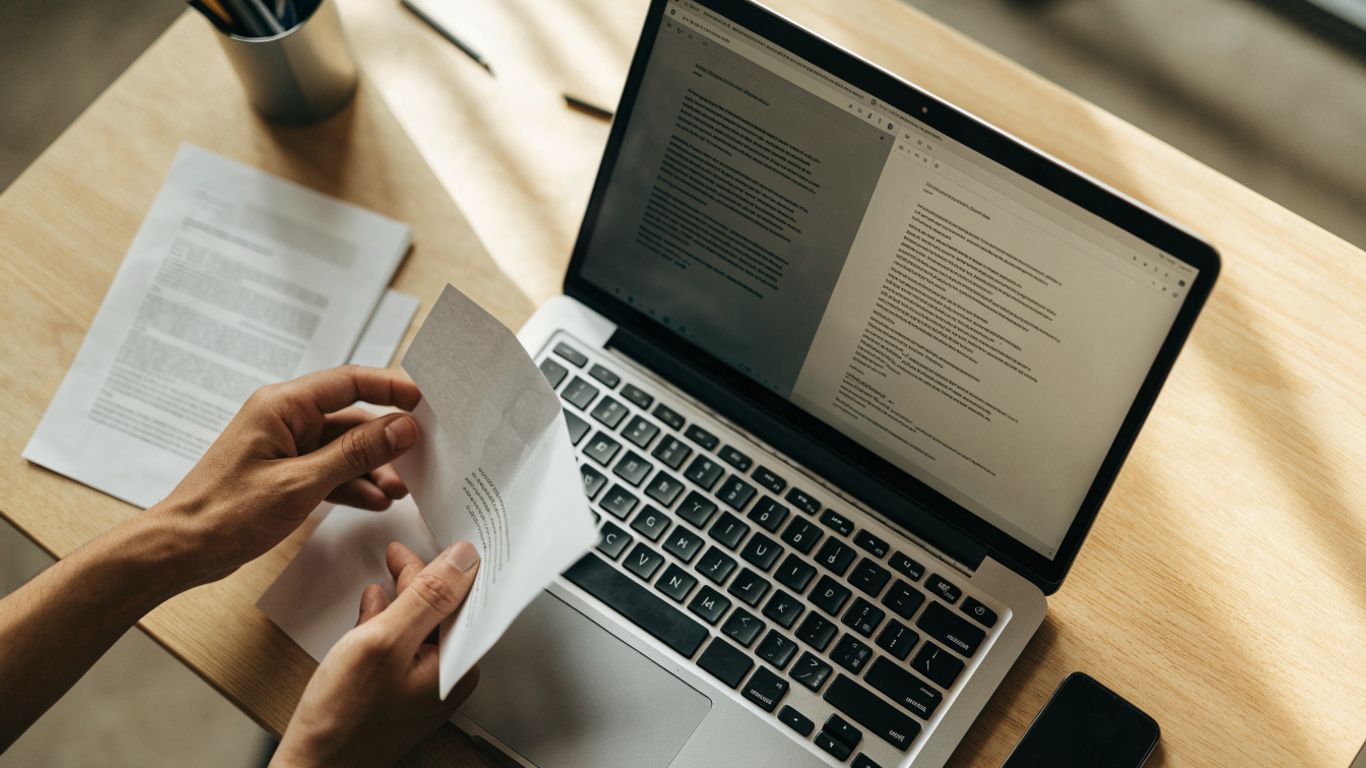
A few small checks can prevent extraction noise from looking like real edits. Use the same approach for both files, and watch for line breaks, headers, footers, and page numbers that may be inserted or repeated in the copied text. When a document includes complex columns or tables, compare a few passages back to the original page before trusting the extraction.
For a dependable starting point, review these details in both extracted copies:
- Confirm that paragraphs appear in the right reading order.
- Check whether headers, footers, and page numbers repeat or interrupt the text.
- Look for missing characters, broken words, or unusual spacing.
- Make sure table rows and column labels remain understandable.
If the text is clean enough to read, you are ready to compare two PDF documents for differences in wording. If it is not, fix the extraction or use a different method before interpreting a diff; otherwise, formatting artifacts can masquerade as changes.
Comparing the two texts word by word
Once you have readable text from both files, paste or import the versions into a comparison tool that marks additions and deletions. A GPTOne private diff checker compares two texts and can show added, deleted, rewritten, or moved passages without requiring uploads. That can be useful when you want to inspect wording, while keeping in mind that the extracted text, not the original page design, is what the comparison is evaluating.
The result is often called a pdf diff, even when the comparison happens between text copied from the PDFs rather than the PDF files themselves. A word-level view helps you find differences between two pdfs without reading every unchanged sentence again. It also gives you a focused place to check whether a changed phrase alters meaning, dates, amounts, or obligations.
Different kinds of edits call for different attention, so it helps to read the highlights with a purpose. This quick guide can keep your review focused:
| Change shown | What to check | Why it matters |
|---|---|---|
| Added wording | Read the new phrase in context | It may introduce a new condition or claim |
| Deleted wording | Check what the sentence now says without it | A removed qualifier can change the meaning |
| Rewritten sentence | Compare the original and revised meaning | Similar wording can still shift responsibility |
| Moved passage | Confirm its new position and surrounding text | Context may have changed even if wording did not |
After reviewing the marked text, confirm important edits against the PDF pages themselves. A diff points you toward changes; it does not decide whether they are acceptable or explain why they were made. If you also need to compare writing for a separate reason, keep that task distinct: GPTOne AI text detector analyzes writing for signals of AI authorship, not changes between PDF versions. You can try the free detector if that is a question you need to investigate separately.
What a text compare misses: images, tables and layout
Text extraction leaves out much of what makes a PDF a page. A comparison may not tell you that a photo was replaced, a chart moved, a signature disappeared, or a footnote shifted to another page. Those changes can matter just as much as altered wording, especially in reports, contracts, and forms.
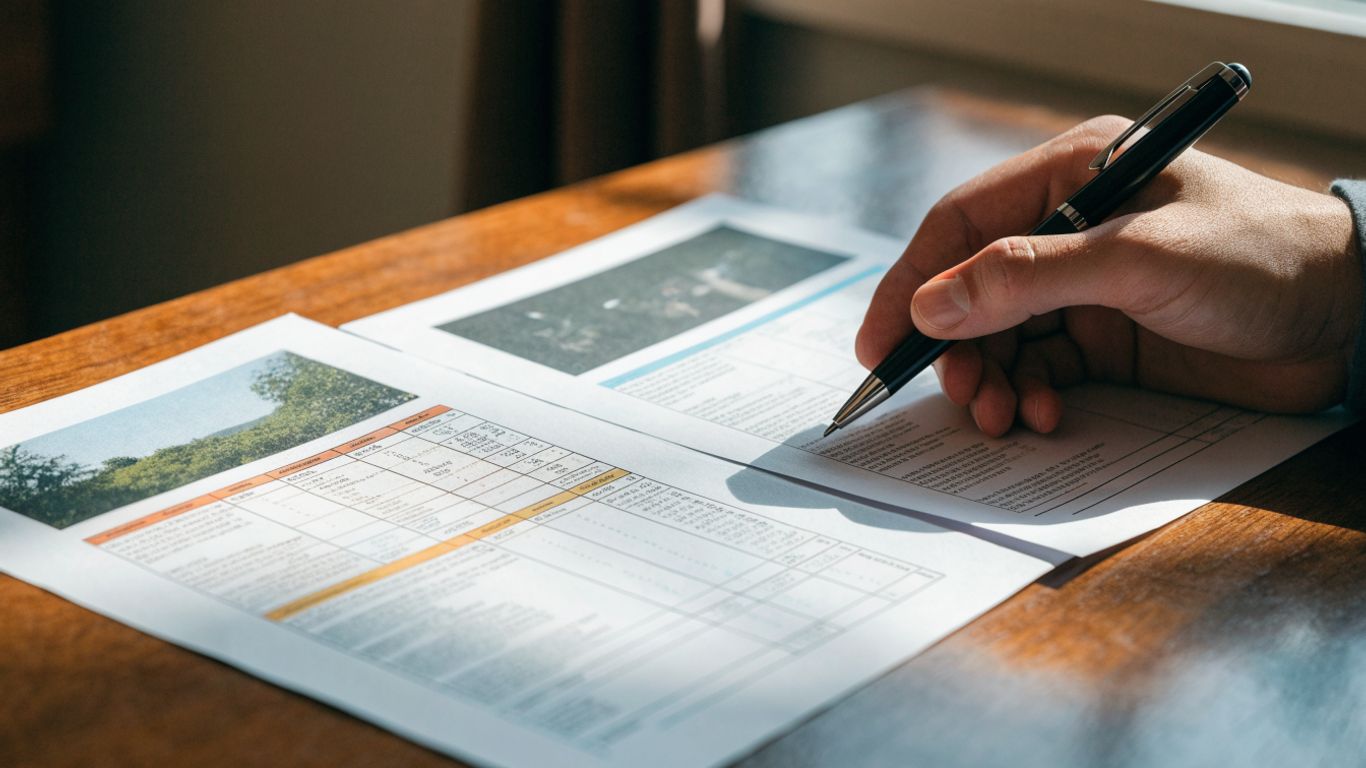
Tables need particular care because their content can be extracted in an order that hides which value belongs in which column. Check headings, row labels, units, totals, and footnotes against the rendered pages. If a number changed, verify its position and context visually rather than relying on a text diff alone.
When the page itself matters, add a visual pass after comparing the words. A side-by-side review can help you keep corresponding pages in view while you inspect them. For image authenticity, GPTOne AI Image Detector assesses whether an image appears real, AI-generated, or AI-modified; that is a separate check, not a PDF layout-comparison feature.
When you need a dedicated PDF compare instead
A text diff is a good fit when the PDFs contain selectable text and your main concern is wording. A dedicated PDF comparison may be more useful when the files have complicated layouts, many pages, scanned content, or visual edits that need to be reviewed alongside text. Some tools compare PDF files online or offline; choose one based on the kind of changes you need to see and the review process you have to follow.
Before picking a method, decide what a useful result should show. If you need to find differences between two pdfs across both wording and page appearance, check whether the workflow supports visual review as well as text comparison. For a short document, a manual page check may be enough; a long or high-stakes file usually deserves a more systematic pass.
A sensible choice comes down to the document and the consequence of missing an edit. Use an online comparison for non-sensitive files when its handling practices meet your needs, and consider an offline workflow when uploads are not appropriate. Whatever you choose, inspect ambiguous results in the original PDFs rather than treating a highlighted difference as self-explanatory.
Keeping confidential PDFs off other people's servers
An online tool may require you to send files to a service for processing, so pause before uploading contracts, personnel records, unpublished research, or client documents. Read the service’s privacy and retention information, and check whether files are stored, used for other purposes, or deleted after processing. If those details are unclear, do not assume the upload is private simply because the comparison is free.
You can reduce exposure by extracting text locally and comparing the copies in a workflow that does not require sending the PDFs elsewhere. Remove unrelated personal details only when doing so will not affect the review, and follow your organization’s rules for handling confidential records. A careful process protects the material without making the comparison itself harder to verify.
The right balance is practical: use the least exposure that still lets you review the changes properly. If you are not sure whether an online service is suitable, ask the document owner or your organization’s privacy contact before sharing it. The convenience of a quick comparison is rarely worth creating an avoidable disclosure.
Conclusion
To compare two PDFs well, extract readable text, use a word-level diff to locate wording changes, and then inspect the pages for visual edits the text cannot show. The best results come from treating each step as evidence to review in context, and choosing a workflow that respects the sensitivity of the documents.
Frequently Asked Questions
Can I compare two PDFs without uploading them?
Yes. You can extract the text on your device and compare the resulting copies locally, or use an offline tool. Check the workflow before starting to make sure it does not send the files to a remote service.
What is the easiest way to compare two PDFs for text changes?
Extract the text from both PDFs, check that it is in a sensible reading order, and compare the copies with a word-level diff. Review the marked changes in context and verify important edits on the original pages.
Why does copied PDF text appear out of order?
A PDF preserves page placement, and its internal text order may not match the order a person reads the page. Multiple columns, tables, sidebars, and footnotes can make copied text appear jumbled.
Can a text diff show changed images or formatting?
Usually, a text diff focuses on wording and may not identify replaced images, layout shifts, or formatting changes. Inspect the rendered pages separately when visual details matter.
What should I do if one PDF is scanned?
A scanned PDF may contain page images rather than selectable text. You may need optical character recognition to create text for comparison, then check the OCR output against the scan because recognition errors can resemble edits.
Why does a PDF comparison show differences that are not real edits?
Extraction can introduce line breaks, spacing changes, repeated headers, or other artifacts. Compare the source pages and clean up the extracted text before deciding whether a marked change is meaningful.
How can I compare PDFs that contain tables?
Compare the extracted wording, then inspect each table on the rendered pages. Verify row and column labels, values, units, totals, and notes in place so you can tell which entries correspond.